
The Assessment Scores interface is used to capture, upload, search, export, and report assessment score records.
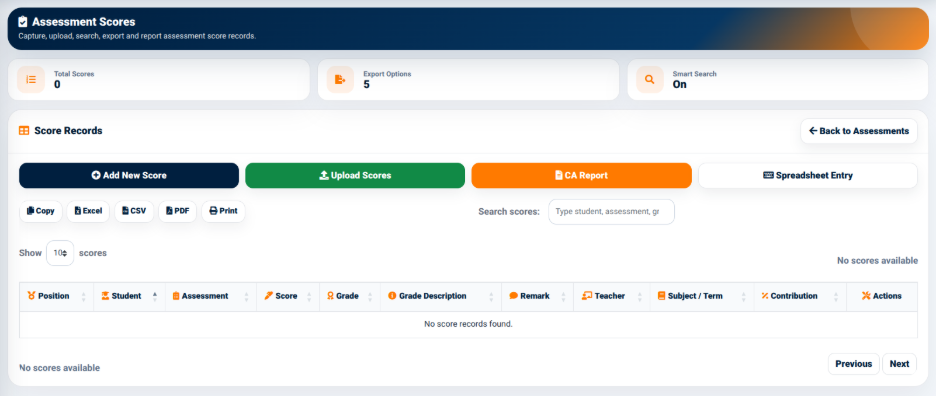
The interface provides summary indicators including:
- Total Scores — Displays the number of score records available.
- Export Options — Indicates the number of available export options.
- Smart Search — Indicates whether the smart search function is active.
The main actions available within the Score Records section include:
- Add New Score — Used to enter an individual student’s score.
- Upload Scores — Used to upload scores using a prepared file.
- CA Report — Provides access to continuous assessment reporting.
- Spreadsheet Entry — Opens the spreadsheet-style score entry interface.
- Copy — Copies the displayed score records.
- Excel — Exports the score records to Excel.
- CSV — Exports the score records in CSV format.
- PDF — Generates a PDF version of the score records.
- Print — Provides a printable version of the displayed records.
The score records table provides information including:
- Position — Displays the student’s position within the displayed assessment results.
- Student — Identifies the student.
- Assessment — Identifies the assessment associated with the score.
- Score — Displays the student’s score.
- Grade — Displays the grade obtained.
- Grade Description — Provides the description associated with the grade.
- Remark — Displays the applicable remark.
- Teacher — Identifies the teacher associated with the score.
- Subject / Term — Identifies the subject and academic term.
- Contribution — Displays the contribution of the score.
- Actions — Provides available actions for the score record.