
The Assessment Management interface is used to create, edit, search, export, and manage assessment records.
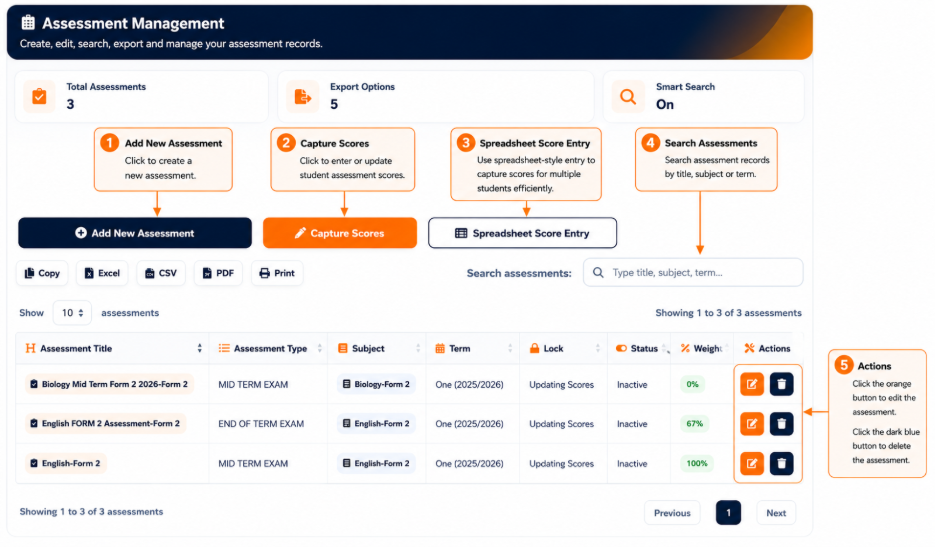
The interface provides summary information at the top of the page, including:
- Total Assessments — Displays the number of assessment records available.
- Export Options — Indicates the number of available data export options.
- Smart Search — Indicates whether the enhanced search function is available.
The Assessment Records section displays existing assessments in a structured table.
The main actions available from the interface include:
- Add New Assessment — Used to create a new assessment record.
- Capture Scores — Opens the score management area for entering assessment scores.
- Spreadsheet Score Entry — Provides a spreadsheet-style interface for entering scores.
- Copy — Copies the displayed assessment information.
- Excel — Exports the assessment records to Excel.
- CSV — Exports the assessment records in CSV format.
- PDF — Generates a PDF version of the displayed information.
- Print — Provides a print-ready version of the assessment records.
Assessment Records
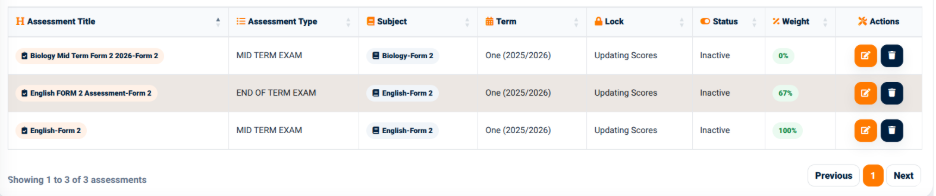
The Assessment Records table provides information about each assessment configured in the system.
The displayed columns include:
- Assessment Title — Identifies the assessment.
- Assessment Type — Indicates the type of assessment.
- Subject — Identifies the subject associated with the assessment.
- Term — Identifies the academic term.
- Lock — Indicates the locking status of the assessment.
- Status — Displays the current status of the assessment.
- Weight — Displays the weighting assigned to the assessment.
- Actions — Provides available actions for the assessment record.
The search field allows users to locate assessment records using information such as the assessment title, subject, or term.
The assessment table therefore provides a central location for reviewing and managing the assessments configured within the system.